Notes to self, as easy as a chat.
Find any word, even in photos and voice notes.
Drop in a thought, a to-do, a link, a photo, a voice note or a PDF as quickly as you’d send a message, or write a page by hand. Later, find it by any word inside it. The reading happens on your device, so it stays private.
Made forAndroid · iPhone · iPad · Mac · Windows · Linux

As easy as messaging yourself.
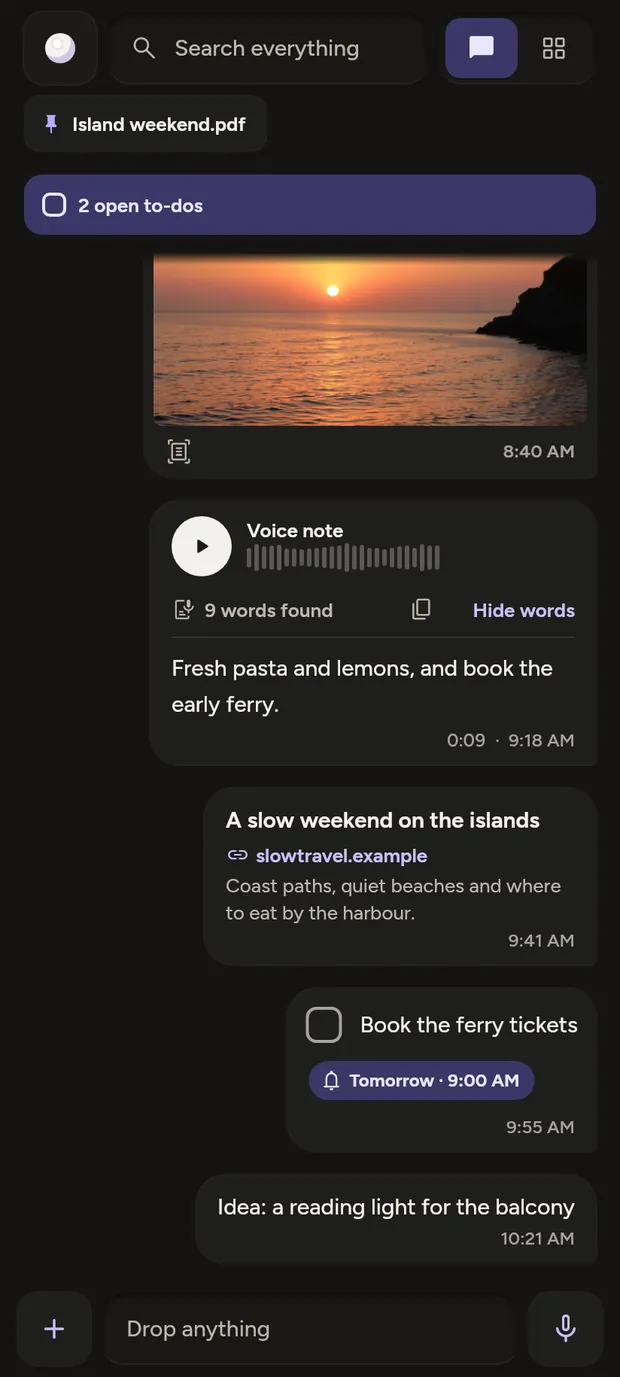
Type, paste, share from any app, speak, snap or attach. It lands in your stream like a message. Nobody asks where it should go, because it doesn’t need to go anywhere.
- Pinned on top: one tap copies it
- Tags, only if you want them
- Everything starts in this one field
- Text
- Links
- Photos
- Voice notes
- PDFs and files
- Handwriting
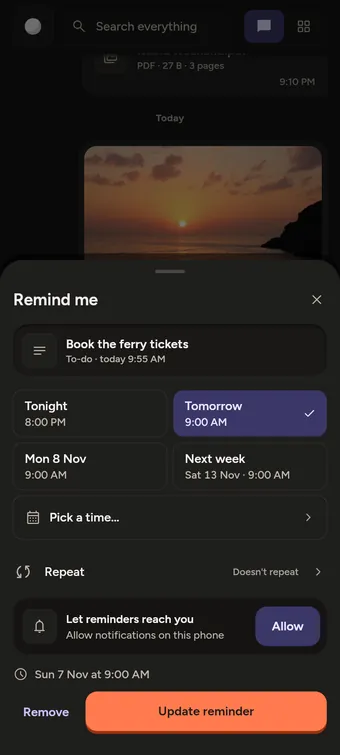
To-dos with reminders.
Tick off to-dos, and get a gentle nudge at the right time.
- Type a quick note or a to-do list, or hold the mic to record a voice note.
- Save links, photos, screenshots, videos, files and PDFs.
- Scan paper with the built-in document scanner.
- Share into Lumafall from any app, or use the home-screen widgets and shortcuts.
- Set a reminder on any note.
- Bring your writing over from other notes apps, Markdown or text files, or an exported chat.
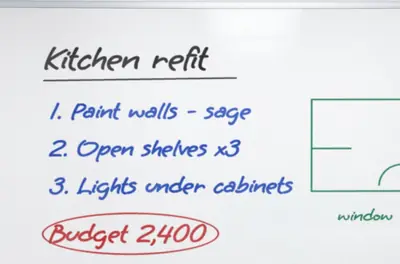
It reads what’s inside.
One search looks inside everything you’ve saved: photos, screenshots and scans, PDFs and documents, saved web pages, file names, voice notes and handwriting. It’s all read on your device.
-

What Lumafall read5 lines · 13 words
- SUNRISE
- YOGA
- in Harbour Park
- Saturdays · 7:30
- Bring a mat, all levels welcome
Search inside your photos
Flyers, signs and labels are read on your device, so their words turn up in search. Each line is found where it sits on the picture.
- 0:24
What Lumafall read3 lines · 19 words
- 0:00Remember to book the boiler service.
- 0:04The number is on the fridge magnet.
- 0:19And call Sam back about Saturday.
Voice notes become text
Talk, and your words are written out on your device, ready to search. A word takes you to the second it was spoken.
-
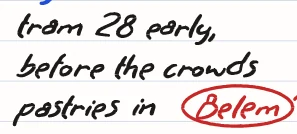
What Lumafall read3 lines · 9 words
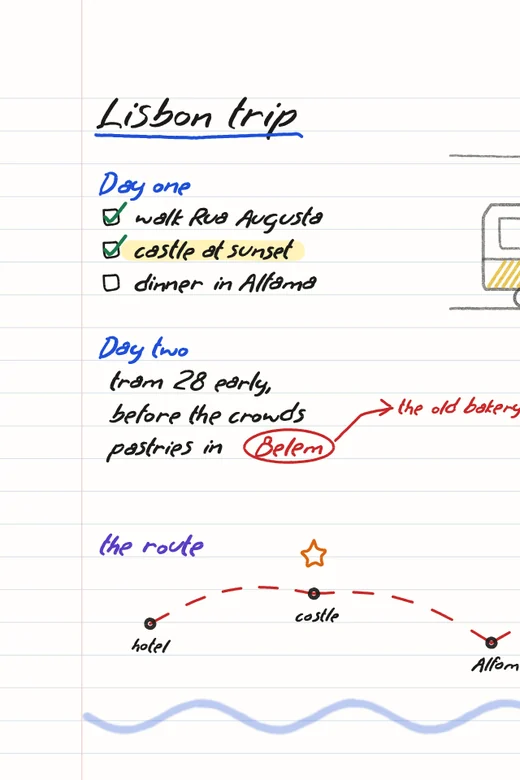
- tram 28 early,
- before the crowds
- pastries in Belem
Handwriting you can search
Pages you write by hand are read line by line, so they turn up in search. PDFs are read page by page, all the way through.
Find any word.
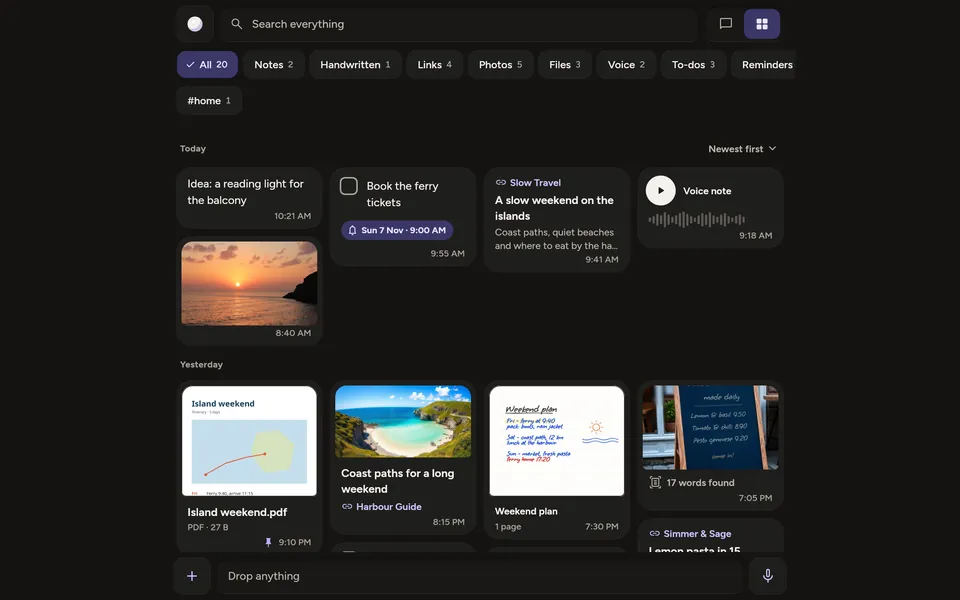
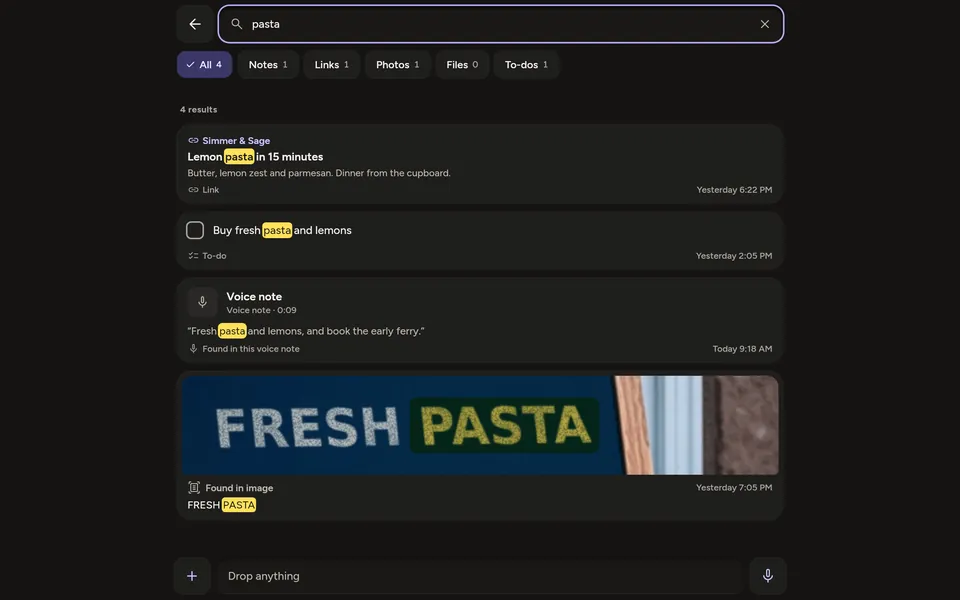
Even inside photos, PDFs, voice notes and your handwriting. Your notes narrow as you type, so searching and browsing are the same thing. Try it: switch between the two screens.
- Everything in one place: photos, PDFs, files, links, voice notes and notebooks, as tidy tiles.
- Found words are marked where they are, even on a photo.
- Small typos are forgiven.
- Notes sort themselves into collections such as receipts, tickets, recipes and screenshots. Each one says why, and you can correct it.
Notebooks
Write by hand.
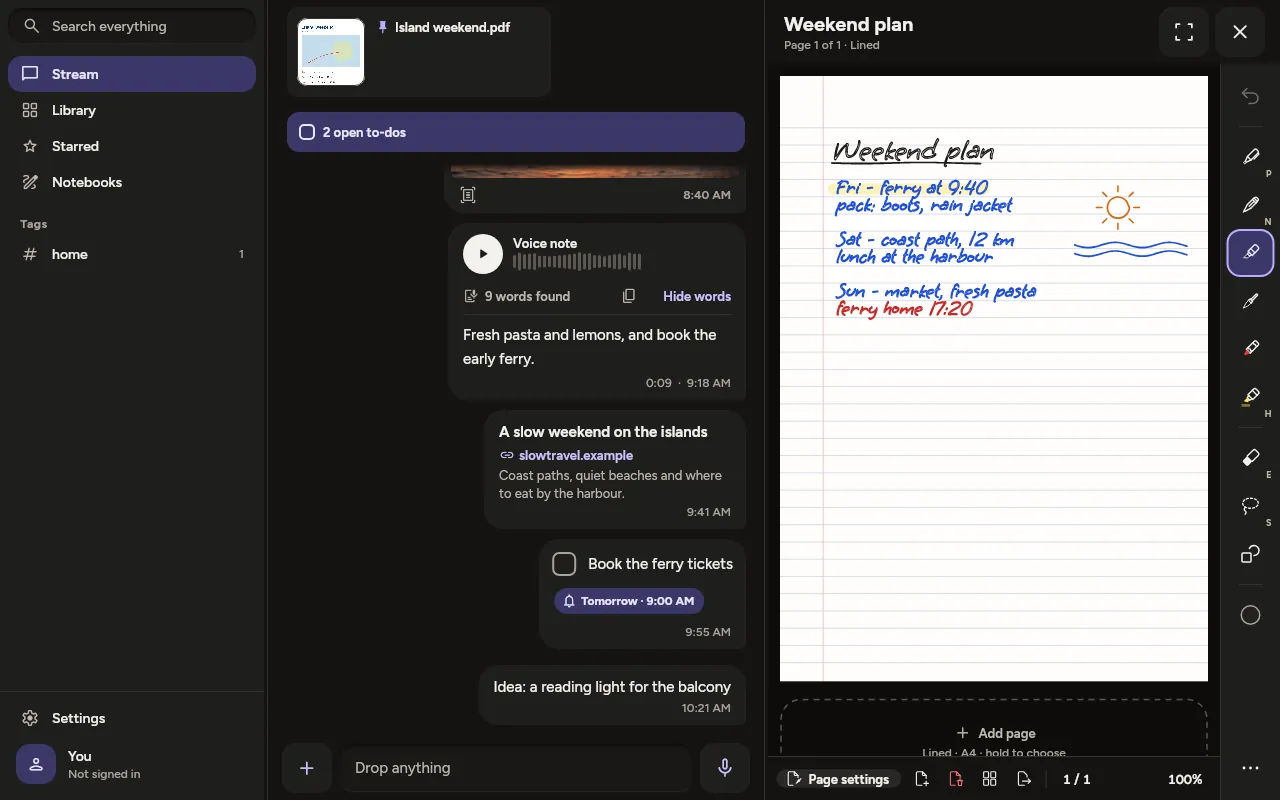
A notebook is real paper, kept in your stream beside everything you typed. Write and draw with a stylus, a finger or a mouse: pens, highlighter, eraser and lasso.
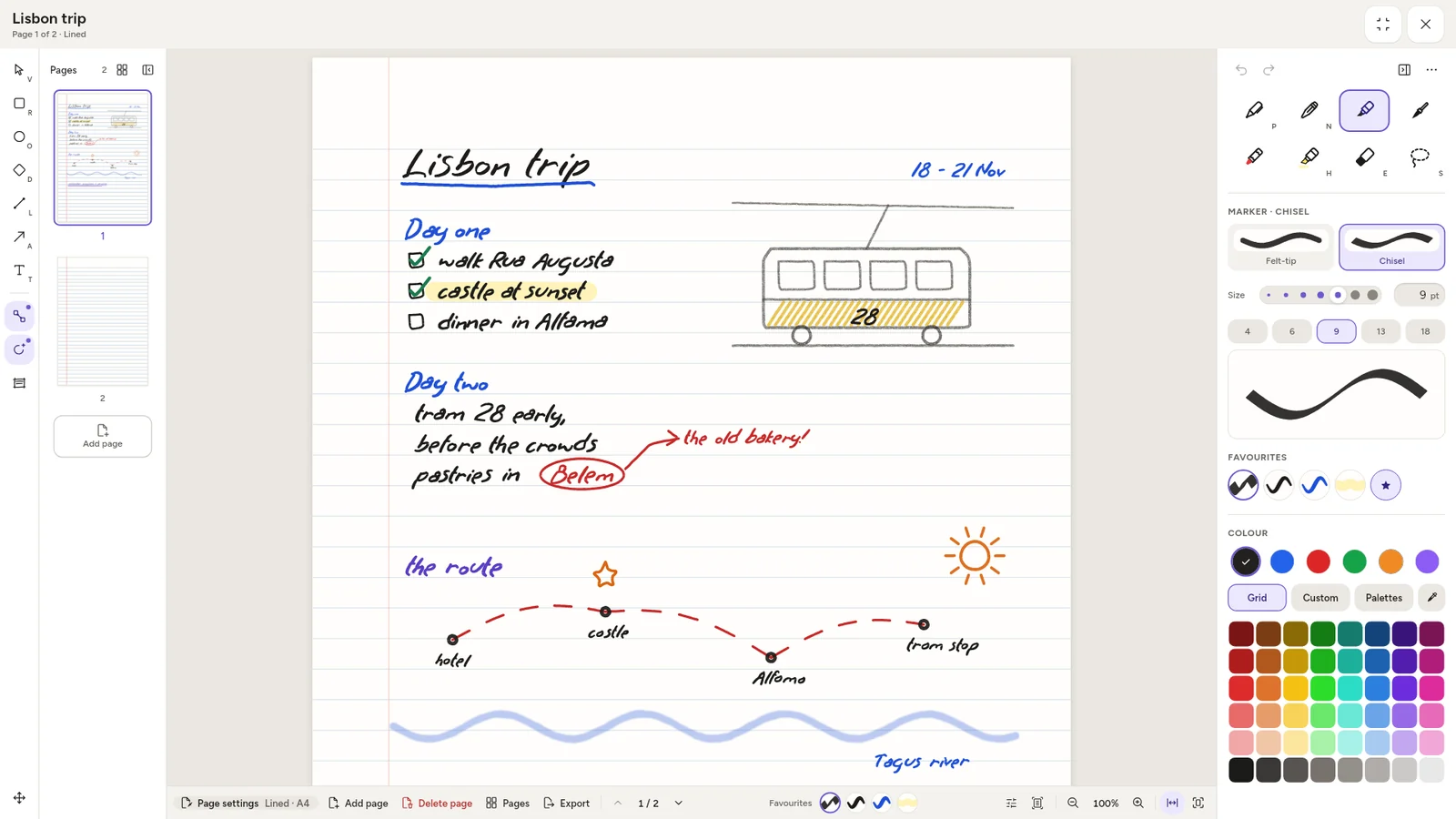
A pen set worth trying out.
Like the test pad in a stationery shop. Pick a pen and watch the line change.
It feels how you hold the pen.
On a tablet with a stylus, or a drawing tablet plugged into a computer, the page follows your hand.
- Pressure. Press harder and the line grows. Ease off and it thins.
- Tilt. Lay a pencil on its side and it shades, up to about three times as wide.
- Rest your hand. While the pen is on the page or just above it, touches from your palm are ignored.
- The pen’s button. Hold it to erase or to lasso. Turn the pen over and its eraser end erases.
No pen? A finger or a mouse draws with every pen too, and the line follows your speed instead.
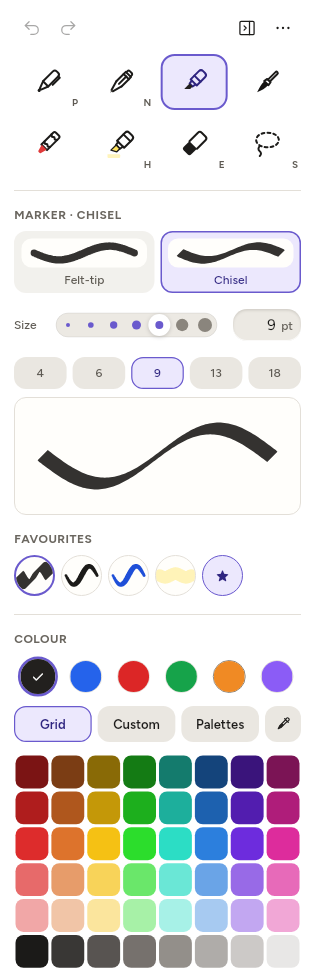
Pens that behave like pens
A fountain pen that turns thick and thin, pencils with grain, markers, a brush and a highlighter that sits under the ink. Each one keeps its own size and colour, and your favourites stay one tap away.
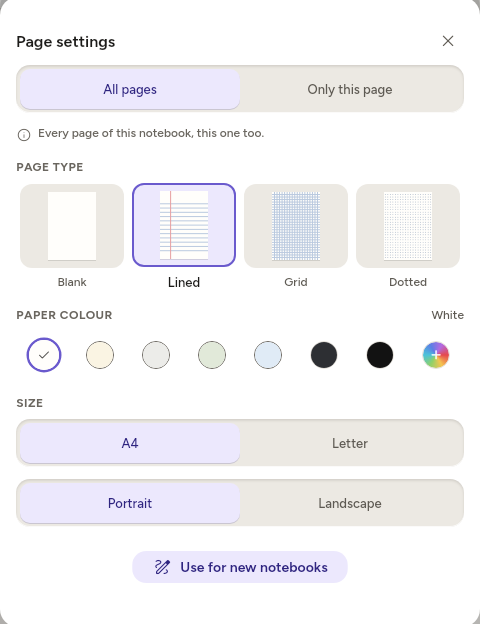
Paper the way you like it
Blank, lined, grid or dotted. White, ivory, sage, sky, charcoal, black or a colour of your own. A4 or Letter, upright or on its side, for one page or the whole notebook.
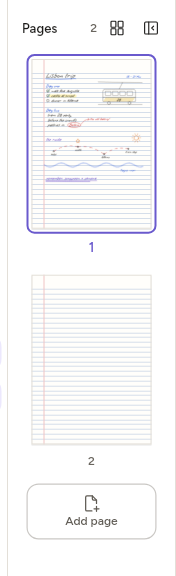
Pages, always in sight
A strip shows every page as a small picture. Tap one to jump to it, add a page at the end, or open them all as a grid.


Find a page by a word you wrote.
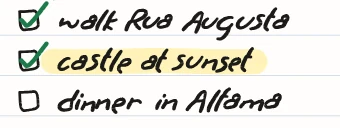
Weeks later, type “castle” and the page comes back, with the word marked.
Lisbon trip
Day one: walk Rua Augusta, castle at sunset, dinner in Alfama.
Found in your handwritingPrivate
Nothing is sent away to be read.
Reading, sorting and search all work offline, on a plane or in a basement. Nothing you save is sent away to be read. Lumafall encrypts everything you save on the device, and App lock uses your fingerprint, face or screen lock. No ads, and we don’t sell or share your data.
You don’t need an account. Sign in only for sync or Google Drive backup.
Read the full privacy policy. It opens with the short version, in the same words as in the app.
- Saving anythingWorks
- Reading photos, PDFs, voice and handwritingWorks
- Searching everythingWorks
- Writing in notebooksWorks
- Link previewsWorks
- Sync to your other devicesWorks
Pro
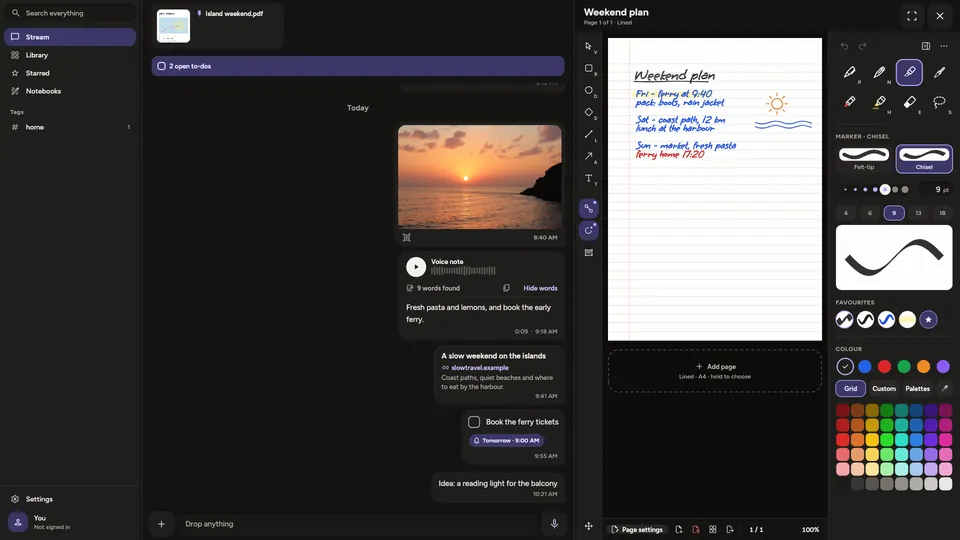
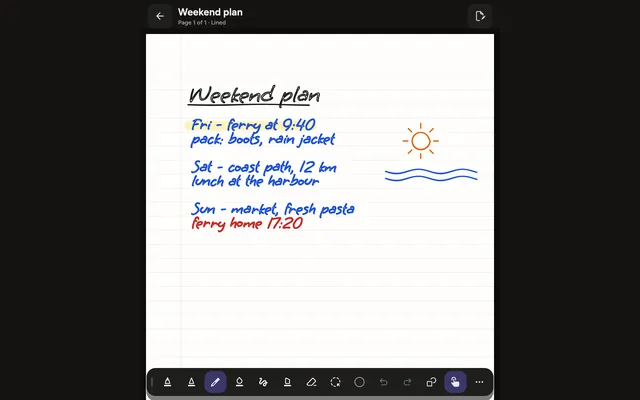
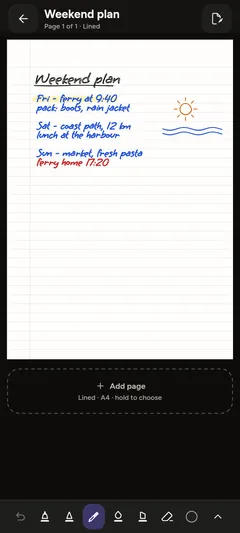
Sync across every device.
Your notes, photos and voice notes on all your devices. End-to-end encrypted, works offline.
- Android
- iPhone
- iPad
- Mac
- Windows
- Linux
Locked on your device before it leaves, with a key only your devices hold, so only your devices can read what sync carries. 25 GB for your notes, photos and files.
Pricing
Free on your device. Pro for every device.
Lumafall
$0
The whole app, on one device, for as long as you like.
- Drop in anything, with no limits on notes
- Search inside photos, PDFs, voice and handwriting
- Handwritten notebooks
- Reminders, to-dos, tags and export
- Backup to your own Google Drive, locked with your passphrase
Lumafall Pro Free for a week
$3.99 a month
Try it free for 7 days. Cancel before the week ends and you pay nothing.
- Everything in the free app
- Sync across every device, end-to-end encrypted: Android, iPhone, iPad, Mac, Windows and Linux
- 25 GB for your notes, photos and files
- Everything back on a new phone: sign in and your notes come home
If Pro ends, sync pauses where it is. Nothing is deleted from your devices, and sync carries on when Pro comes back. Prices are in US dollars and may differ by country and store.
Where it runs
Made properly for each screen.
A phone you type on, a tablet you write on, a computer with a keyboard and a mouse.
Tablets work upright or on their side, with a pen’s pressure and tilt. Drawing tablets work on a computer.
- AndroidPhone and tablet
- iPhonePhone
- iPadTablet
- MacComputer
- WindowsComputer
- LinuxComputer
Questions before you install? Write to us and a person replies.
Questions
Fair things to ask.
Is Lumafall free?
Yes. The whole app is free on your device: everything you drop in, search, notebooks, reminders, export and backup to your own Google Drive. Pro adds one thing, sync between your devices, with 25 GB of space.
How does the free week work?
Pro starts with 7 days free, once per account, on any device. Cancel before the week ends and you pay nothing. If the week ends without a plan, sync simply pauses and your notes stay on every device.
Does it work without the internet?
Yes. Saving, reading and searching all happen on your device, so they work offline. Only sync and link previews need a connection.
Can you read my notes?
No. Without sync, your notes never leave your device. With sync, they are locked on your device with a key only your devices hold before they travel. We store the locked copy and can’t open it, and neither can the companies whose computers we use.
What can it read inside my things?
Printed words in photos and screenshots, text in PDFs and documents, speech in voice notes, your handwriting in notebooks, and the title and words of a linked page. All of it is read on your device.
What if I lose my phone?
With Pro, sign in on the new phone and everything comes back. Without Pro, restore from the backup in your own Google Drive, which is locked with your passphrase.
How do I delete my data?
Two taps in Settings, at any time, with no email needed. How deleting works.
Who makes it?
LumaSquid, a small independent software studio. Write to [email protected] and a person replies.